If monitoring stops updating, this is a Wi-Fi connectivity
issue. It does not affect the generation of your solar system. Pick your inverter brand
below.
2.4 GHz onlyMonitoring, not generationUnder three minutes2.4 GHz onlyMonitoring, not generationUnder three minutes
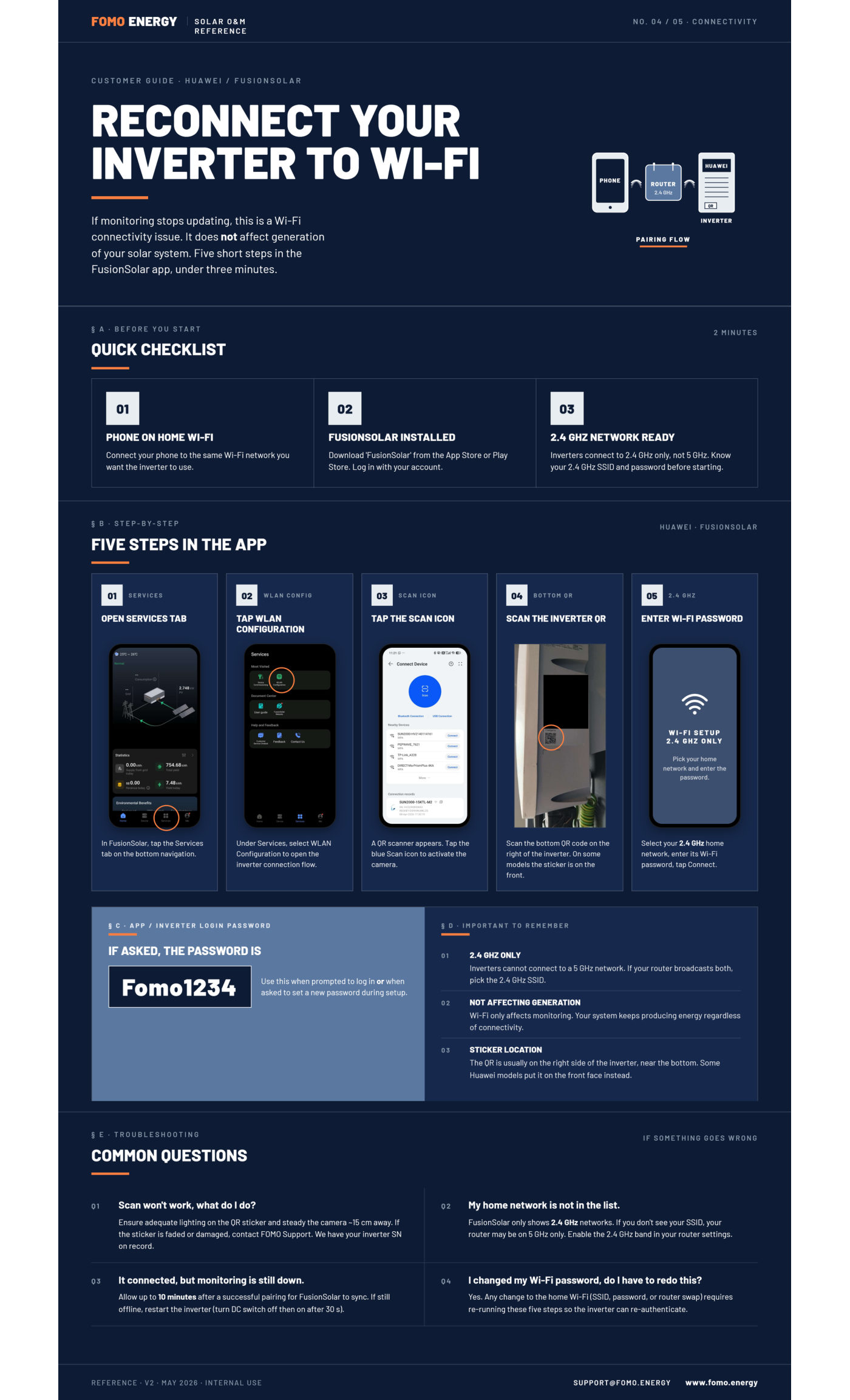
2.4 GHzThe only band that worksInverters cannot join a 5 GHz network. Pick the 2.4 GHz SSID.
3 minTypical time to reconnectHave your 2.4 GHz network name and password ready before you start.
Still generatingWhile Wi-Fi is downOnly monitoring stops. The system keeps producing and exporting as normal.
§ A · Before you start2 minutes
Huawei · FusionSolar
Quick checklist
01 · Phone on home Wi-Fi
Connect your phone to the same Wi-Fi network you want the inverter to use.
02 · FusionSolar installed
Download 'FusionSolar' from the App Store or Play Store. Log in with your account.
03 · 2.4 GHz network ready
Inverters connect to 2.4 GHz only, not 5 GHz. Know your 2.4 GHz SSID and password before starting.
§ B · Step by stepHuawei · FusionSolar
Follow along on your phone
5 steps in the app
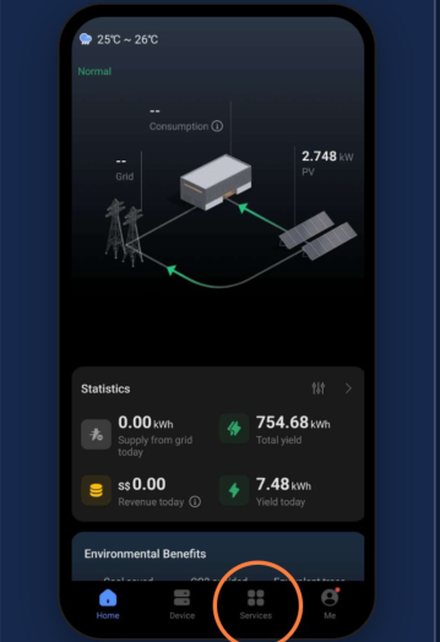
01Services
Open Services tab
In FusionSolar, tap the Services tab on the bottom navigation.
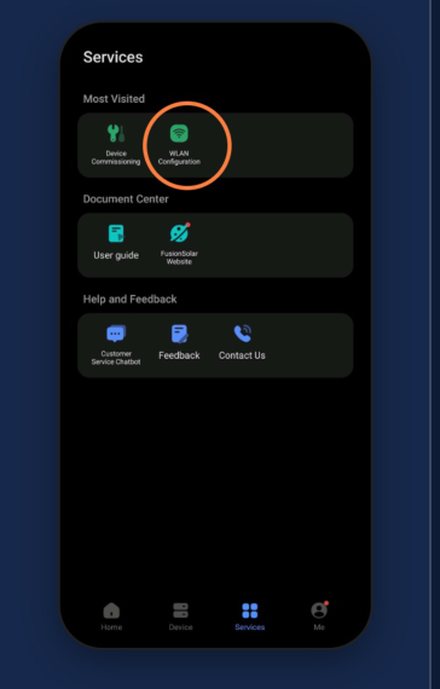
02WLAN config
Tap WLAN Configuration
Under Services, select WLAN Configuration to open the inverter connection flow.
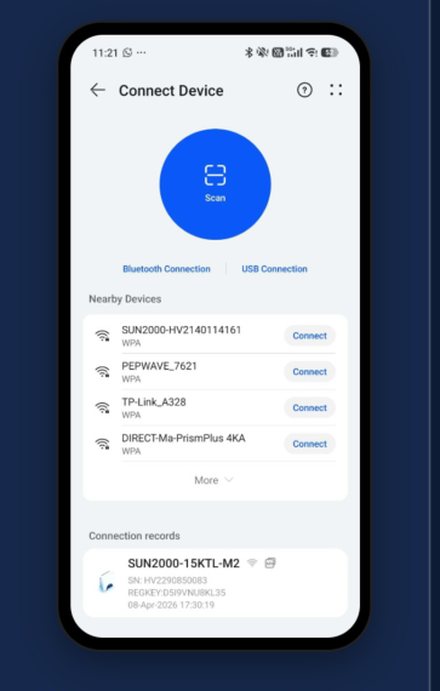
03Scan icon
Tap the scan icon
A QR scanner appears. Tap the blue Scan icon to activate the camera.
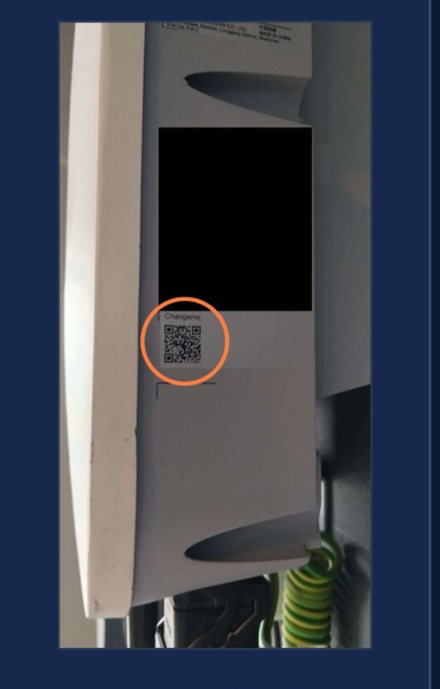
04Bottom QR
Scan the inverter QR
Scan the bottom QR code on the right of the inverter. On some models the sticker is on the front.
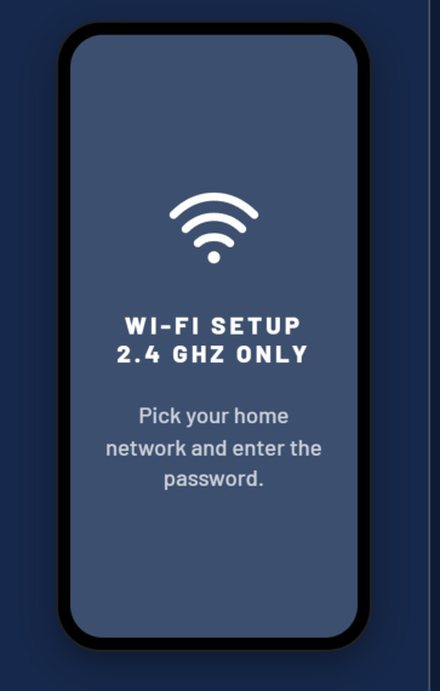
052.4 GHz
Enter Wi-Fi password
Select your 2.4 GHz home network, enter its Wi-Fi password, tap Connect.
§ C · App / inverter login password
If asked, the password is
Fomo1234
Use this when prompted to log in or when asked to set a new password during setup.
§ D · Important to remember
2.4 GHz only
Inverters cannot connect to a 5 GHz network. If your router broadcasts both, pick the 2.4 GHz SSID.
Not affecting generation
Wi-Fi only affects monitoring. Your system keeps producing energy regardless of connectivity.
Sticker location
The QR is usually on the right side of the inverter, near the bottom. Some Huawei models put it on the front face instead.
§ E · Troubleshooting
If something goes wrong
Scan won't work, what do I do?
Ensure adequate lighting on the QR sticker and hold the camera steady about 15 cm away. If the sticker is faded or damaged, contact FOMO Support — we have your inverter serial number on record.
My home network is not in the list.
FusionSolar only shows 2.4 GHz networks. If you do not see your SSID, your router may be on 5 GHz only. Enable the 2.4 GHz band in your router settings.
It connected, but monitoring is still down.
Allow up to 10 minutes after a successful pairing for FusionSolar to sync. If it is still offline, restart the inverter — turn the DC switch off, then on after 30 seconds.
I changed my Wi-Fi password, do I have to redo this?
Yes. Any change to the home Wi-Fi — password, SSID or a router swap — requires re-running these steps so the inverter can re-authenticate.
Download
The Huawei one-pager
Every step on this page, condensed into a single sheet you can save or forward. Prepared by
the FOMO Energy Solar O&M team.
Connect your phone to the same Wi-Fi network you want the inverter to use.
02 · iSolarCloud installed
Download 'iSolarCloud' from the App Store or Play Store. Log in with your account.
03 · 2.4 GHz network ready
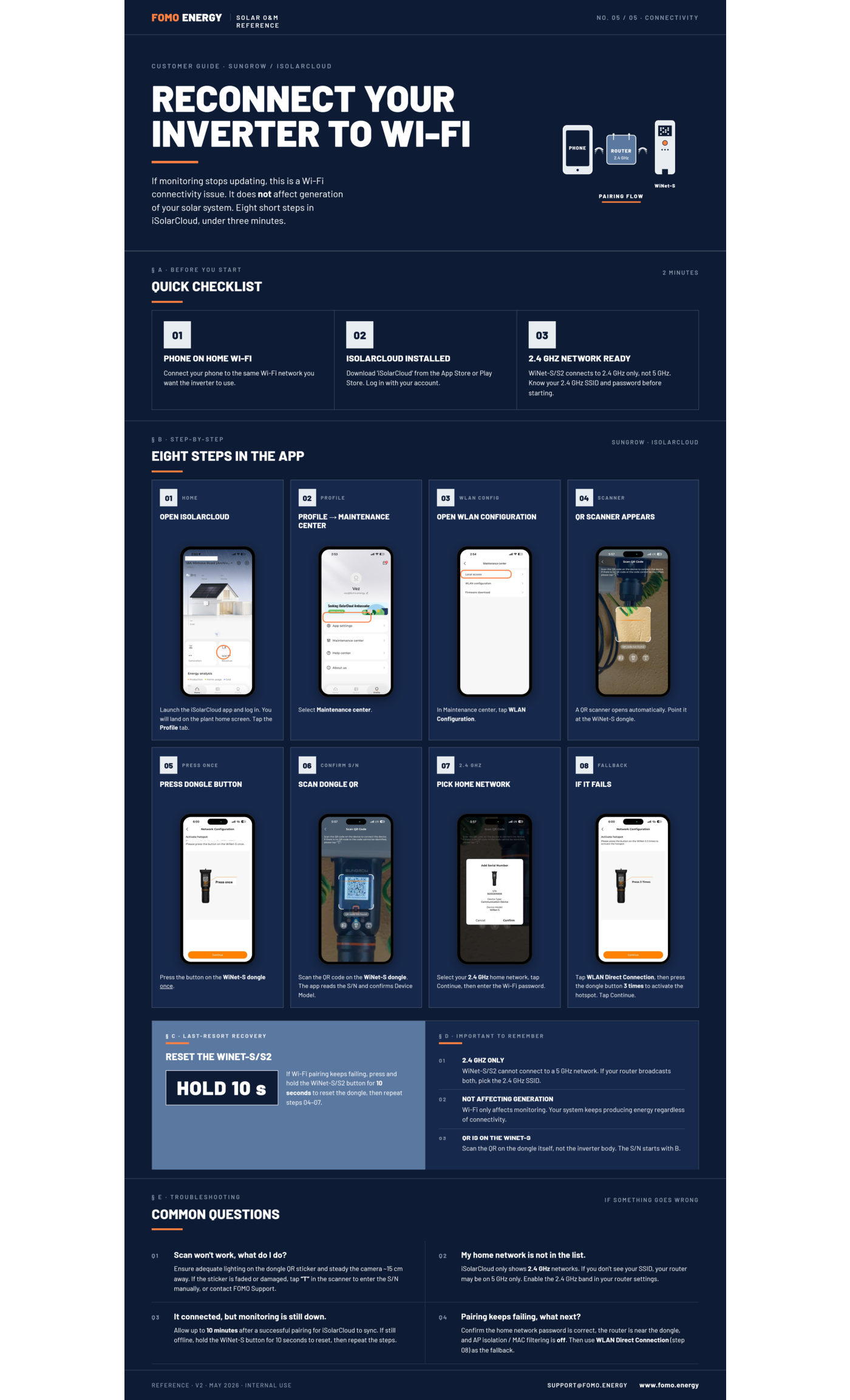
WiNet-S/S2 connects to 2.4 GHz only, not 5 GHz. Know your 2.4 GHz SSID and password before starting.
§ B · Step by stepSungrow · iSolarCloud
Follow along on your phone
8 steps in the app
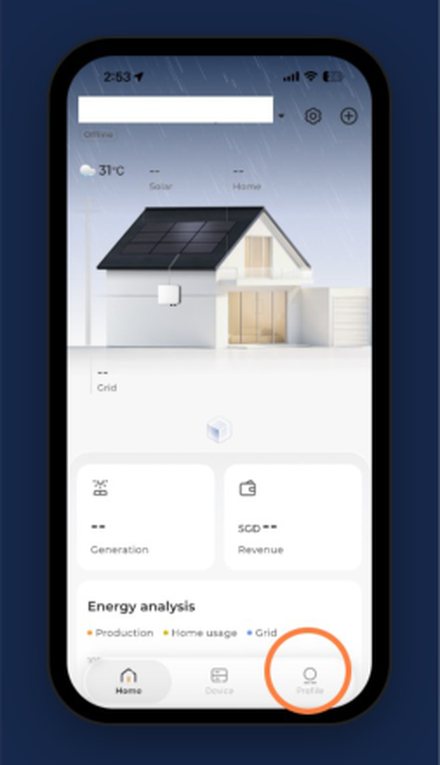
01Home
Open iSolarCloud
Launch the app and log in. You land on the plant home screen. Tap the Profile tab.
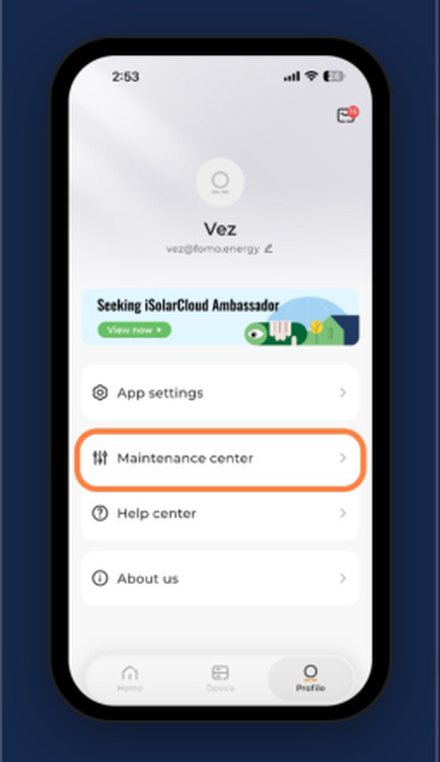
02Profile
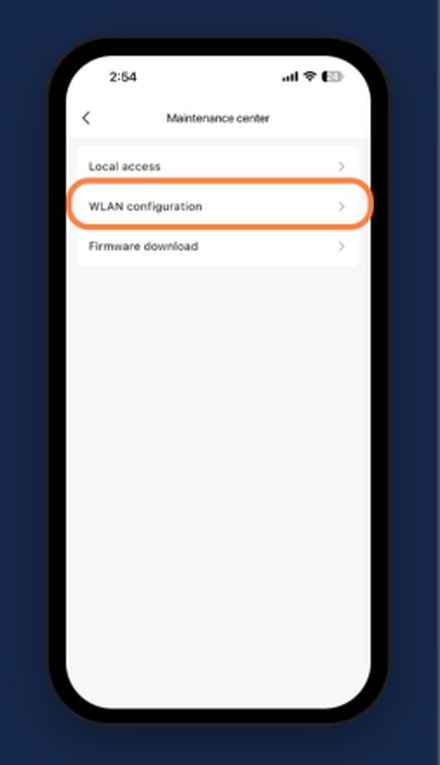
Profile → Maintenance center
Select Maintenance center from the profile menu.
03WLAN config
Open WLAN Configuration
In Maintenance center, tap WLAN Configuration.
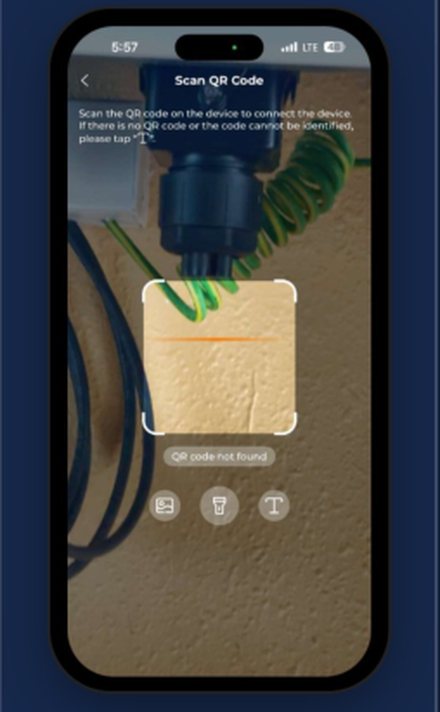
04Scanner
QR scanner appears
A QR scanner opens automatically. Point it at the WiNet-S dongle.
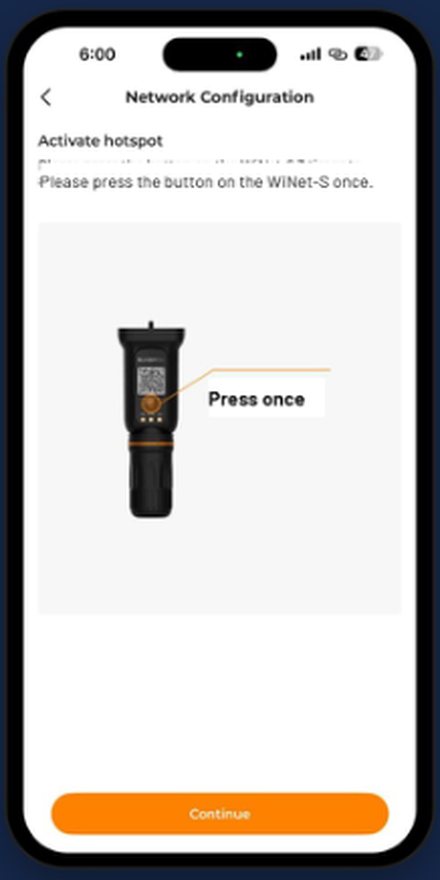
05Press once
Press dongle button
Press the button on the WiNet-S dongle once.
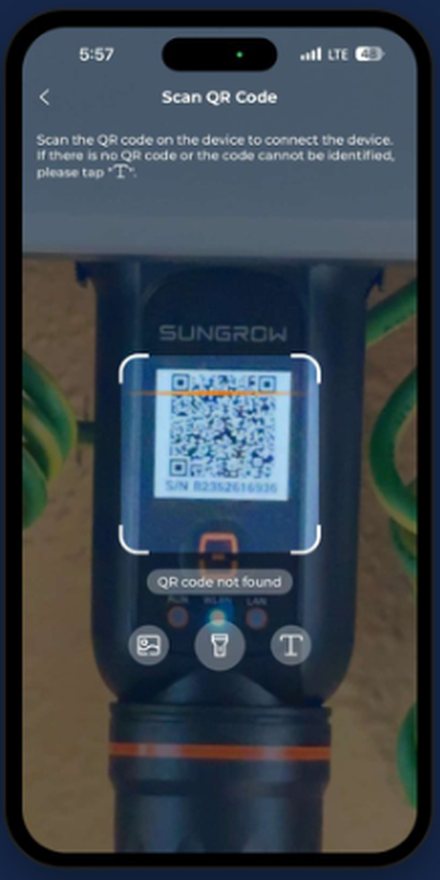
06Confirm S/N
Scan dongle QR
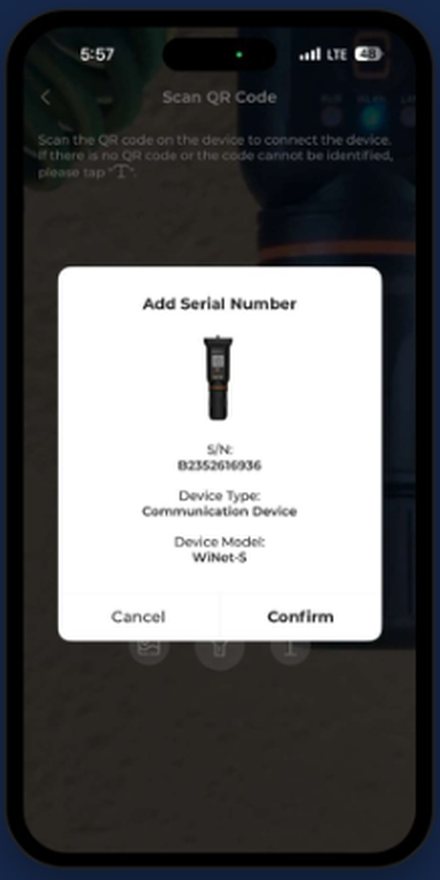
Scan the QR code on the WiNet-S dongle. The app reads the serial number and confirms the device model.
072.4 GHz
Pick home network
Select your 2.4 GHz home network, tap Continue, then enter the Wi-Fi password.
08Fallback
If it fails
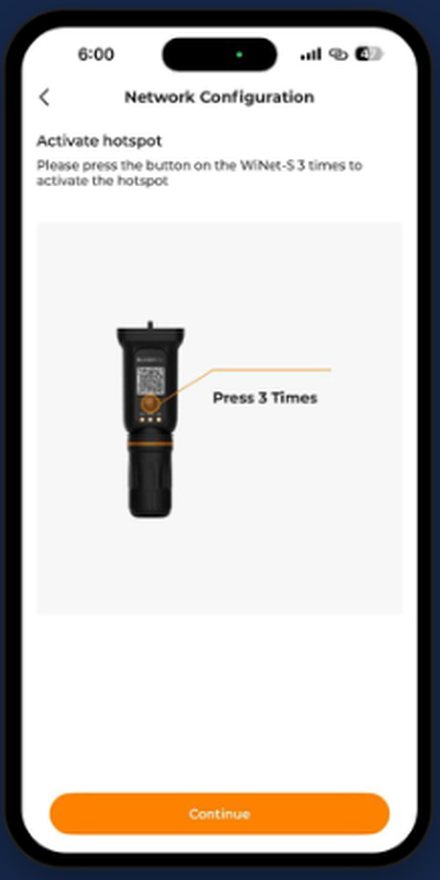
Tap WLAN Direct Connection, then press the dongle button 3 times to activate the hotspot. Tap Continue.
§ C · Last-resort recovery
Reset the WiNet-S/S2
Hold 10 s
If Wi-Fi pairing keeps failing, press and hold the WiNet-S/S2 button for 10 seconds to reset the dongle, then repeat steps 04–07.
§ D · Important to remember
2.4 GHz only
WiNet-S/S2 cannot connect to a 5 GHz network. If your router broadcasts both, pick the 2.4 GHz SSID.
Not affecting generation
Wi-Fi only affects monitoring. Your system keeps producing energy regardless of connectivity.
QR is on the WiNet-S
Scan the QR on the dongle itself, not the inverter body. The serial number starts with B.
§ E · Troubleshooting
If something goes wrong
Scan won't work, what do I do?
Ensure adequate lighting on the dongle QR sticker and hold the camera steady about 15 cm away. If the sticker is faded or damaged, tap "T" in the scanner to enter the serial number manually, or contact FOMO Support.
My home network is not in the list.
iSolarCloud only shows 2.4 GHz networks. If you do not see your SSID, your router may be on 5 GHz only. Enable the 2.4 GHz band in your router settings.
It connected, but monitoring is still down.
Allow up to 10 minutes after a successful pairing for iSolarCloud to sync. If it is still offline, hold the WiNet-S button for 10 seconds to reset, then repeat the steps.
Pairing keeps failing, what next?
Confirm the home network password is correct, the router is near the dongle, and AP isolation / MAC filtering is off. Then use WLAN Direct Connection (step 08) as the fallback.
Download
The Sungrow one-pager
Every step on this page, condensed into a single sheet you can save or forward. Prepared by
the FOMO Energy Solar O&M team.